Before Google can show your page to anyone, it has to find it, read it, understand it, and decide it deserves a spot in the results. Once you understand how Google works, every other SEO task makes sense, because each one helps Google with one of these steps.
This lesson explains each step in plain language, with a few simple code examples (each explained line by line), and ends with three quick checks you can do on your own site today.
🦉 Before we start: what's your guess?
Which do you think happens first?
- A) Google ranks your page, then saves it
- B) Google saves your page, then ranks it
- C) Both happen at the same time
Show the answerHide the answer
B) Google saves your page first. Google can only show pages it has already found, read and stored. Ranking is the very last step, and you'll see exactly why in a minute.
Meet Blue Cove Kayaks
To keep things practical, this whole series follows one small example website: Blue Cove Kayaks (bluecove-kayaks.example), a family-run sea-kayaking tour company on Naxos. The business is made up, but its SEO problems are very real.
Blue Cove just published a page for their most popular trip, the Sunset kayak tour. A week later, it gets no visitors from Google at all. Throughout this lesson, we'll follow that page through Google's steps and find out where it got stuck.
The big picture: Google as a giant library
Imagine Google as the biggest library in the world, with one very fast librarian.
- Crawling = finding the books. The librarian walks around collecting every new or updated book it can find.
- Rendering = opening the books. Some pages only appear once you open the cover, so the librarian opens each book to see everything inside.
- Indexing = cataloguing the books. The librarian reads each book, works out what it's about, and files it in the catalogue. Some books get rejected, for example copies of books already on the shelf.
- Ranking = recommending books. When a visitor asks a question, the librarian picks the most helpful books from the catalogue and hands them over in order.
One important detail: not every page makes it through all four steps. A page can be found but never catalogued, or catalogued but never recommended. Most SEO problems come down to working out where a page got stuck.
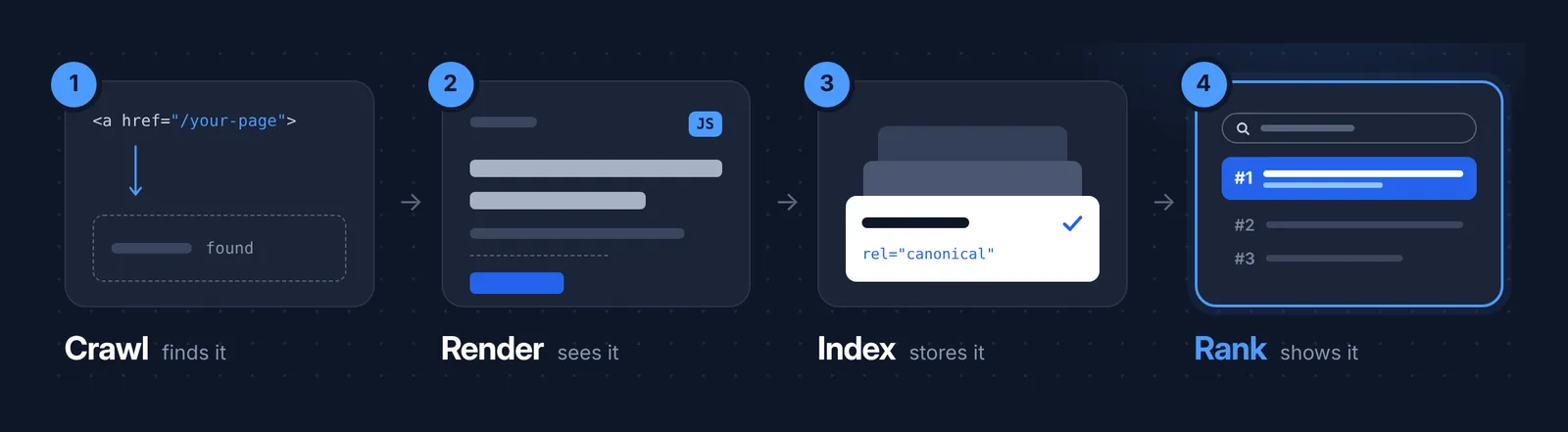
Step 1: Crawling (how Google finds your pages)
There's no master list of every page on the internet, so Google has to discover pages itself. It does this with a program called Googlebot (also called a crawler, bot or spider). Googlebot finds new pages in three main ways:
- Pages it already knows. It revisits them to check for updates.
- Links. When a page it knows links to a new page, Googlebot follows that link. For example, Blue Cove's homepage links to the new sunset tour.
- Sitemaps. A sitemap is a file that lists the pages on your site, like a table of contents you hand to Google.
Links must be real links
Googlebot follows links written as normal HTML links. Here's what a good one looks like:
<a href="/tours/sunset-kayak-tour">See our sunset kayak tour</a>
<a ...>tells the browser "this is a link."href="/tours/sunset-kayak-tour"is the address the link goes to. Googlebot reads this.See our sunset kayak touris the clickable text people see. Google also uses it to understand what the linked page is about.
Some websites make "links" with buttons or scripts instead, with no href address. People can still click them, but Googlebot may not find the page behind them. If a page has no real links pointing to it and isn't in your sitemap, Google may never discover it.
🦉 Quick check
Blue Cove publishes a new "Private kayak tours" page. Nothing on the site links to it, and it isn't in the sitemap. What happens?
- A) Google finds it within a day anyway
- B) Google probably never finds it
- C) Google finds it, but only on mobile
Show the answerHide the answer
B) Google probably never finds it. Googlebot discovers pages through links and sitemaps. A page with neither is like a book hidden in a cupboard: the librarian has no way of knowing it's there. The fix is easy: link to it from the Tours page and add it to the sitemap.
robots.txt: the sign on the door
Before crawling a page, Googlebot checks a small file called robots.txt, found at yoursite.com/robots.txt. It tells crawlers which parts of the site they may visit. Blue Cove's looks like this:
User-agent: *
Disallow: /admin/
Sitemap: https://bluecove-kayaks.example/sitemap.xml
User-agent: *means "these rules apply to all crawlers."Disallow: /admin/means "don't crawl anything in the /admin/ folder." Private areas like a login page are common examples.Sitemap: ...tells crawlers where your sitemap is.
If robots.txt blocks a page, Googlebot skips it completely.
Scout's mistake: "I added
Disallow: /to my robots.txt to block one test page." That single slash means everything.Disallow: /blocks your whole site. Always check a new rule in the Robots.txt tester before you save it.
Step 2: Rendering (how Google "sees" the page)
Most beginner guides skip this step, but it matters more every year.
When you open a website, your browser does two things. First it downloads the page's basic code (the HTML). Then it runs JavaScript, a programming language that can add or change content on the page: menus, booking calendars, reviews, sometimes even the main text.
Google does the same. After crawling a page, it loads it in a recent version of the Chrome browser and runs the JavaScript. This is called rendering. It's the librarian opening the book to read the pages that only appear once you turn the cover.
Why this matters for you:
- Rendering can be delayed. Google puts pages in a queue for rendering, so content that only appears through JavaScript may take longer to be seen.
- Content can be missed. If something goes wrong with the JavaScript, Google may see an almost empty page.
- Blocked files can't be rendered. If robots.txt blocks the JavaScript files a page needs, Google can't run them.
Blue Cove's weak spot
This is where Blue Cove's sunset tour page had a problem. The whole tour description (route, duration, price, what to bring) lived inside their booking widget, a tool that loads with JavaScript. The page's basic code looked like this:
<h1>Sunset kayak tour</h1>
<div id="booking-widget"></div>
<script src="https://booking-tool.example/widget.js"></script>
<div id="booking-widget"></div>is an empty box. The text only appears after the script runs.<script src="...">loads the booking tool's JavaScript.
So before rendering, Google saw a heading and an empty box. The fix is to put the important text in the page itself and keep the widget just for booking:
<h1>Sunset kayak tour in Naxos</h1>
<p>A 3-hour guided paddle along the coast, ending on a quiet beach at golden hour.
   Small groups, all gear included, no experience needed.</p>
<div id="booking-widget"></div>
<script src="https://booking-tool.example/widget.js"></script>
The safe rule: your important content (headings, main text, links) should be in the page's basic code from the start, so Google can see it even before rendering. Many modern site builders, including AI-built sites, rely heavily on JavaScript, so it's worth asking your developer or site builder about this. You'll learn a quick way to check your own page at the end of this lesson.
🦉 Spot the mistake
Blue Cove's menu has this "link" to the sunset tour. Why might Google never follow it?
<button onclick="goTo('/tours/sunset-kayak-tour')">Sunset tour</button>
Show the answerHide the answer
There's no href. It's a button that runs a script when clicked, not a real link. Visitors can use it, but Googlebot looks for <a href="..."> links and may skip it. The fix:
<a href="/tours/sunset-kayak-tour">Sunset tour</a>
Step 3: Indexing (how Google understands and stores your pages)
Once Google has a page, it tries to understand what it's about. It looks at the text, images, videos and a few important pieces of code. If the page is useful and not a duplicate, Google stores it in its index, a huge database of pages it can show in results.
The title tag: your page's name tag
One of the first things Google reads is the page title:
<title>Sunset Kayak Tour in Naxos | Blue Cove Kayaks</title>
<title>and</title>mark the start and end of the title.- The text in between is the page's name. It often appears as the blue clickable headline in Google results, so it should clearly say what the page is about.
- Every page should have its own unique title.
Want to write better ones? See How to write title tags that get clicked.
noindex: "please don't store this page"
Sometimes you don't want a page in Google at all, such as the "Thanks for booking!" page customers see after paying. You can say so with one line:
<meta name="robots" content="noindex">
name="robots"means "this instruction is for search engine crawlers."content="noindex"means "don't add this page to your index."
This is useful, but dangerous if it's left on the wrong pages.
Scout's mistake: "My whole site disappeared from Google after launch!" A classic: the site was built with noindex on every page (so the unfinished version stayed hidden), and nobody removed it at launch. Always check for noindex on launch day.
Duplicates and the canonical page
Often the same content lives at several addresses. When customers pick a date or group size on Blue Cove's tour page, the address changes:
https://bluecove-kayaks.example/tours/sunset-kayak-tour/
https://bluecove-kayaks.example/tours/sunset-kayak-tour/?date=2027-07-14
https://bluecove-kayaks.example/tours/sunset-kayak-tour/?people=2
It's the same tour page each time. Google groups similar pages together and picks one to show in results. That chosen version is called the canonical page. The others are treated as alternate versions.
You can tell Google which version you prefer with a canonical tag:
<link rel="canonical" href="https://bluecove-kayaks.example/tours/sunset-kayak-tour/">
rel="canonical"means "this is the main version of this page."href="..."is the address of that main version.
Place the same tag on all three versions, pointing to the clean address. Google treats it as a strong hint, not a command, so it can still choose differently. But a clear, consistent canonical makes it much more likely Google picks the one you want.
Step 4: Ranking (how Google chooses what to show)
When someone searches, Google looks through its index and shows the pages it believes are the most relevant and highest quality for that search. Google says it uses hundreds of factors, and it doesn't publish the full list. In practice, they fall into a few groups:
- Relevance. Does the page actually answer what the person searched for?
- Quality. Is the content helpful, accurate and trustworthy?
- Usability. Does the page work well on phones, load quickly and is it easy to use?
- Context. Who is searching, from where, in which language, and on which device?
Context is why two people can see different results for the same search. A tourist searching "kayak tour" while standing on a beach in Naxos will see different results from someone searching the same words at home in Berlin.
This is also why you'll never find an honest, exact "ranking formula." Be careful with anyone who claims to have one.
Where AI answers fit in
Google now shows AI-generated answers for many searches. These answers draw on content Google has already found and understood, so the same steps still apply. If your page can't be crawled or indexed, it can't be used in an AI answer either. Getting the basics right is still the foundation.
Common beginner myths
- "If I submit my site to Google, it will rank." Submitting a sitemap helps Google find your pages. It doesn't guarantee they'll be indexed or ranked.
- "Once a page is indexed, it stays indexed." Google revisits pages and can remove them, for example if they become duplicates or low quality.
- "More pages means more traffic." Many thin or near-identical pages can make it harder for Google to pick out your best ones.
- "robots.txt hides a page from Google." It stops crawling, but a blocked page can still show up in results if other sites link to it. To keep a page out of results, use noindex, and don't block it in robots.txt, or Google will never see the noindex tag.
🦉 What would you do?
Blue Cove fixed their booking widget, and their sunset tour page is now indexed. But a month later, it still gets almost no visitors from Google. Which step should they look at next?
- A) Crawling: Google probably can't find it
- B) Rendering: the widget must still be broken
- C) Ranking: the page is stored, but isn't chosen for the searches people make
Show the answerHide the answer
C) Ranking. If a page is indexed, Google has already found, rendered and stored it, so the first three steps are fine. Now the question is whether it's the best answer for what people search. That's what lessons 3 to 5 are about: the right keywords, the right type of page, and a page that answers people's questions.
Do this now: 3 checks in 10 minutes
- See roughly what Google has stored. Search Google for
site:yourdomain.com, using your own domain. It's not an exact count, but if your important pages are missing, that's a clue. (In lesson 2 you'll learn the exact way to check.) - Read your robots.txt. Open
yourdomain.com/robots.txtin your browser. Look for a line that saysDisallow: /on its own. If you see one, your whole site is blocked. Not sure about a rule? Paste your address into the Robots.txt tester. - Check what Google sees before rendering. Open your most important page, press Ctrl + U (Windows) or Cmd + Option + U (Mac) to view the page's basic code, then search (Ctrl/Cmd + F) for a sentence from your main text. Found it? 👍 Not there? Your text probably loads through JavaScript, just like Blue Cove's booking widget, so ask your developer or site builder about it.
Quick recap
Google crawls to find your pages, renders them to see what's on them, indexes them to understand and store them, and ranks them to decide who sees them. When a page isn't showing up, ask which step it got stuck on.
You finished lesson 1. 🎉 That's 1 of 8 done.
Want every lesson of this series in one place? The SEO for Beginners Guide brings together all 8 lessons, every checklist (including the full "Is your page Google-ready?" check) and all the quick checks with answers, in one free PDF. Leave your email and you'll get it as soon as it's ready.
The guide for the SEO for Beginners series: the full checklist, free by email.
Next lesson
Blue Cove's sunset tour page is out there, but is it actually on Google? In lesson 2: Is my page on Google? you'll learn the quick check and the reliable one, and what to do when a page isn't indexed.
Want the deeper version of crawling and indexing? Read Crawling and indexing, explained simply.
Sources and further reading
- In-depth guide to how Google Search works (Google Search Central): the official overview of crawling, indexing and serving results.
- Understand the JavaScript SEO basics (Google Search Central): how Google renders pages and handles JavaScript.
- Introduction to robots.txt (Google Search Central): what robots.txt can and can't do.
- What is canonicalization (Google Search Central): how Google picks the main version of duplicate pages.