You published a new page. A week later you search for it on Google and… nothing. Is something broken, or is the page just new? The first thing to find out is simple: is my page on Google at all?
In lesson 1 we saw that every page goes through four steps: crawl, render, index, rank. A page can only rank once it's been indexed, meaning Google has saved it. So before you worry about rankings, check whether your page is indexed by Google.
In this lesson you'll learn two ways to check if a page is indexed, what each answer means, and how to fix the most common reasons a page is not indexed.
🦉 Remember from lesson 1?
Google handles every page in four steps. After which step can a page finally show up in search results?
- A) Crawl
- B) Render
- C) Index
Show the answerHide the answer
C) Index. Google has to save the page (index it) before it can show it to anyone. Crawling and rendering only mean Google has visited and read it. That's exactly why this lesson is about checking whether your page is indexed.
Meet Blue Cove Kayaks
To keep things practical, this series follows one small example website: Blue Cove Kayaks (bluecove-kayaks.example), a family-run sea-kayaking tour company on Naxos. The business is made up, but its SEO problems are very real. Most small sites run into them.
Blue Cove just added a page for their most popular trip: the Sunset kayak tour (bluecove-kayaks.example/tours/sunset-kayak-tour). Two weeks later, the page still isn't on Google, so tourists searching for sunset kayaking on Naxos can't find it. Let's find out why.
Check 1: The quick check with a site: search
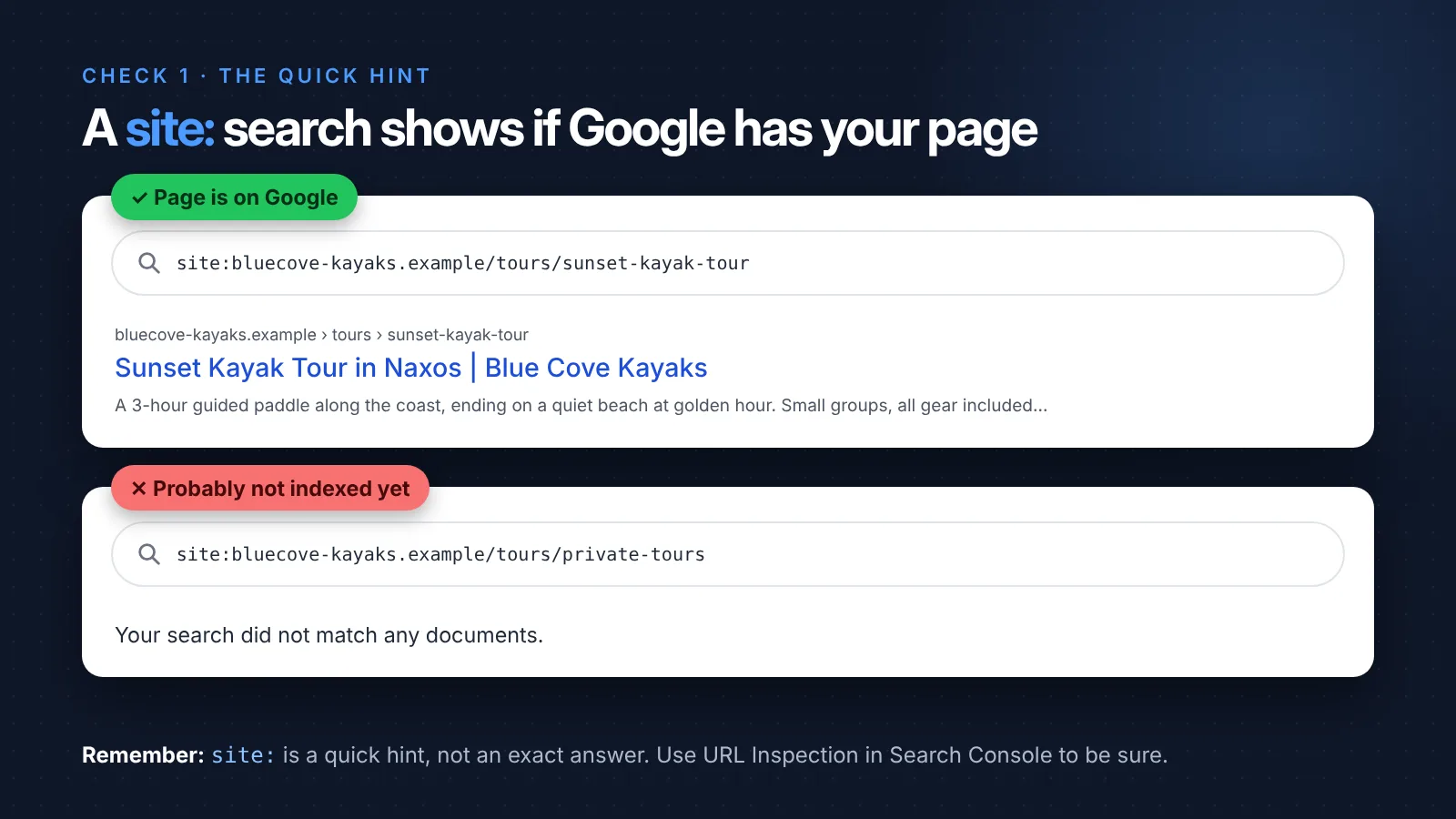
Go to Google and type site: followed by your page's address, with no space after the colon:
site:bluecove-kayaks.example/tours/sunset-kayak-tour
- You see your page in the results? Your page is on Google. 🎉
- "Your search did not match any documents"? Your page is probably not indexed yet.
You can also run a site: search for your whole website:
site:bluecove-kayaks.example
This lists the pages Google has saved from your site. It's a quick way to spot pages that are missing, or old pages you forgot about that are still showing up.
Scout's mistake: "My
site:search showed 40 pages, so I thought Google had exactly 40 of my pages!" Asite:search is a quick hint, not an exact count. It can miss pages or show old ones. To know for sure whether a page is indexed by Google, use Search Console (next section).
Check 2: The reliable check with Google Search Console
Google Search Console is Google's free dashboard for your website. It shows exactly how Google sees your pages, including whether each page is indexed. If you only set up one SEO tool, make it this one.
Step 1: Add your site to Google Search Console
Go to search.google.com/search-console and sign in with a Google account. You'll be asked to choose a property type:
| Option | What it covers | How you verify | Best for |
|---|---|---|---|
| Domain | Your whole site, including www, non-www, http and https |
Add a DNS record at your domain provider | Most sites, if you can access your domain settings |
| URL prefix | Only the exact address you type, e.g. https://bluecove-kayaks.example |
Several easy options, like a meta tag | Beginners who can't touch DNS settings |
If you're not sure, start with URL prefix. You can add a Domain property later.
Step 2: Prove the site is yours
With URL prefix, the easiest method is the HTML tag. Google gives you a line like this:
<meta name="google-site-verification" content="abc123yourcodehere" />
Paste it inside the <head> of your homepage, then click Verify.
You usually don't need to touch code for this:
- WordPress: SEO plugins like Yoast or Rank Math have a "Google verification code" field. Paste only the code part (
abc123yourcodehere). - Wix, Squarespace, Shopify: each has a "Connect to Google Search Console" or "verification" setting in its SEO or marketing settings.
Tip: Leave the tag in place after you verify. If you remove it, you lose access to Google Search Console for that site.
Step 3: Submit your sitemap
Your sitemap is the list of pages you want Google to know about (I explain it in XML sitemaps: what to include and what to leave out).
In Google Search Console, open Sitemaps in the left menu, type your sitemap's address and click Submit. Most sites use one of these:
sitemap.xml
sitemap_index.xml
Not sure which one you have? Open yoursite.com/sitemap.xml in your browser. If you see a list of links, that's it.
Step 4: Use the URL Inspection tool
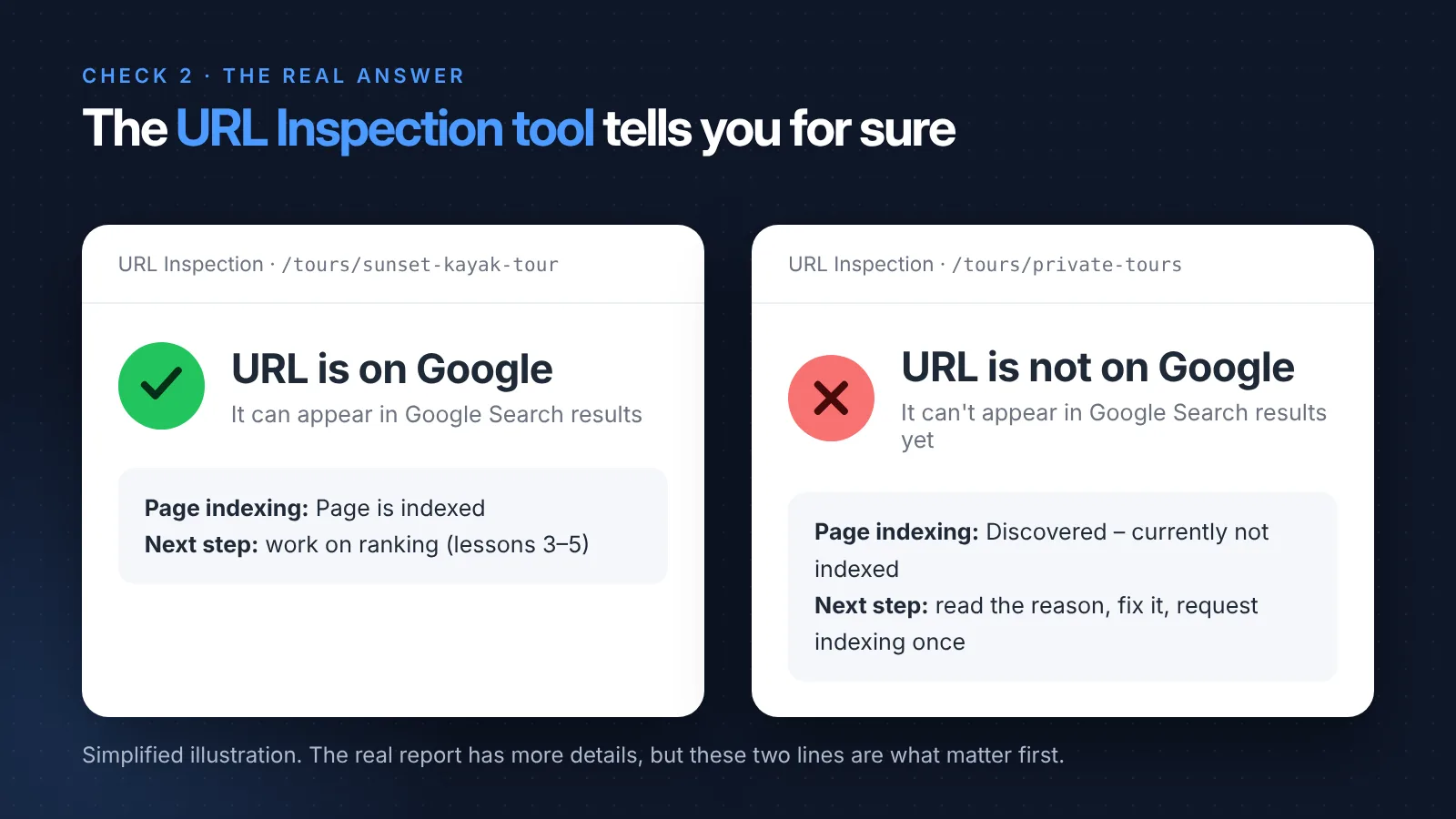
Now the main event. The URL Inspection tool tells you whether a specific page is indexed. Paste your page's full address into the search bar at the very top of Google Search Console (it says "Inspect any URL") and press Enter.
You'll get one of two answers:
- ✅ URL is on Google: the page is indexed. If it isn't getting visitors yet, that's a ranking question, which we'll cover later in this series.
- ❌ URL is not on Google: the page is not indexed. Open Page indexing in the result to see why.
🦉 Quick check
Your site: search shows nothing for a page, but the URL Inspection tool says "URL is on Google". Which one do you trust?
- A) The
site:search - B) The URL Inspection tool
- C) Neither, so search again tomorrow
Show the answerHide the answer
B) The URL Inspection tool. It comes straight from Google's own records for that exact page. A site: search is only a quick hint and sometimes misses pages that are indexed.
For Blue Cove's sunset tour page, the URL Inspection tool said:
❌ URL is not on Google Page indexing: Discovered – currently not indexed
So what does that mean?
Page not indexed? What each status means
Google Search Console uses some confusing names. Here are the page indexing statuses beginners see most, in plain language:
| Status | What it means | What to do |
|---|---|---|
| Discovered – currently not indexed | Google knows the page exists, but hasn't visited it yet | Often just wait. Linking to it from your other pages helps a lot |
| Crawled – currently not indexed | Google visited the page and decided not to save it, for now | Make the page clearly useful and different from your other pages |
| Excluded by 'noindex' tag | Your page is telling Google not to save it | Remove the noindex (see below) |
| Blocked by robots.txt | Your robots.txt file stops Google from visiting | Fix the rule in robots.txt (see below) |
| Alternate page with proper canonical tag | Google is using another version of this page as the main one | Usually fine, nothing to fix |
| Not found (404) | Nothing exists at this address | Fix the link, or redirect it to the right page |
Let's look at how to fix the most common reasons a page is not indexed, starting with Blue Cove's.
Fix 1: "Discovered – currently not indexed" → add internal links
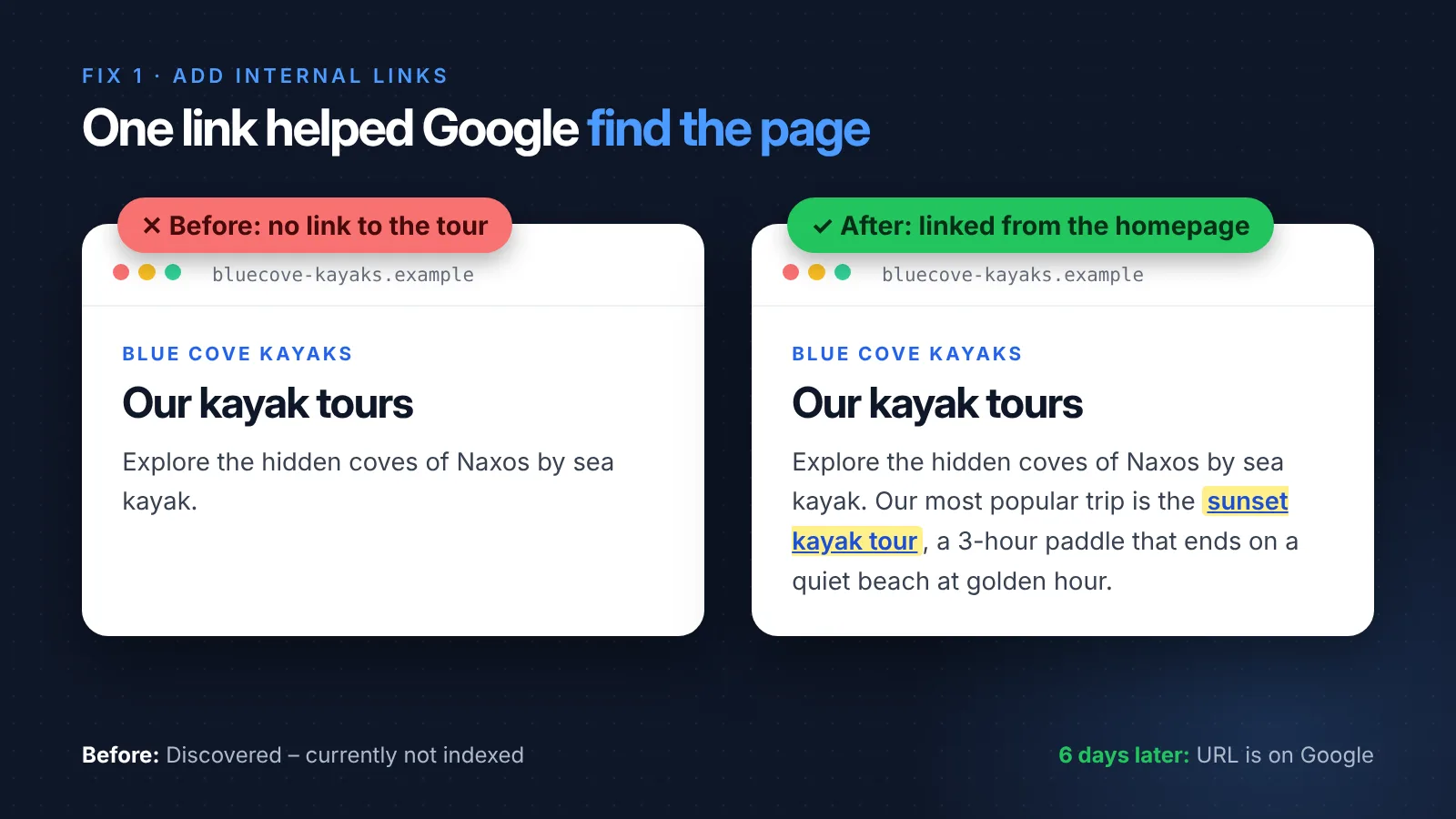
Blue Cove's sunset tour page had no links pointing to it. It was in the sitemap, but nowhere on the site actually linked to it, not even the "Tours" menu. To Google, a page that nothing links to looks unimportant, so it waits.
The fix: link to it from pages Google already visits often, like the homepage and the tours page.
Before, the tours section of Blue Cove's homepage:
<h2>Our kayak tours</h2>
<p>Explore the hidden coves of Naxos by sea kayak.</p>
After:
<h2>Our kayak tours</h2>
<p>
  Explore the hidden coves of Naxos by sea kayak. Our most popular trip is the
  <a href="/tours/sunset-kayak-tour">sunset kayak tour</a>, a 3-hour paddle
  that ends on a quiet beach at golden hour.
</p>
Two small things that make a difference:
- Use descriptive link text ("sunset kayak tour"), not "click here". It tells Google what the page is about.
- Use a normal
<a href="...">link. Google follows these reliably.
No code needed: in most website builders, highlight the words in your text editor and click the link button. The result is the same.
Fix 2: "Excluded by 'noindex' tag" → remove the noindex
A noindex tag is a line in your page's code that tells Google: "don't save this page". It looks like this:
<meta name="robots" content="noindex">
How to check a page for noindex: open it in your browser, press Ctrl + U (Windows) or Cmd + Option + U (Mac) to view the source, then search for noindex with Ctrl/Cmd + F. You can also run the page through the free SEO Audit.
A noindex tag is often there by accident. The usual causes:
- WordPress: under Settings → Reading, the box "Discourage search engines from indexing this site" is still ticked from when the site was being built. Untick it.
- SEO plugins: the page is set to "No index" in the plugin's settings box under the editor. Switch it to "Index".
- Website builders: a "Hide this page from search engines" toggle is switched on in the page's SEO settings.
Scout's mistake: "My whole site disappeared from Google after I launched!" Classic: the "hide from search engines" setting was turned on while the site was being built, and nobody turned it off at launch. Always check for noindex on launch day.
Fix 3: "Blocked by robots.txt" → fix the rule
Your robots.txt file lives at yoursite.com/robots.txt and tells Google which parts of your site it may not visit. One wrong line can block the pages you care about most.
Blue Cove had a folder of unfinished tour drafts at /tours-draft/ that they wanted to keep out of Google. So they added this:
User-agent: *
Disallow: /tours
The problem: Disallow: /tours blocks every address that starts with /tours. That includes /tours-draft/, but also /tours/sunset-kayak-tour and every other tour page.
The right version is specific:
User-agent: *
Disallow: /tours-draft/
Paste your URL into the Robots.txt tester to check whether a page is allowed.
Good to know: robots.txt only stops Google from visiting a page. If you want a page kept out of Google's results, use
noindexinstead, and don't block it in robots.txt, or Google can't see the noindex.
🦉 Spot the mistake
Blue Cove wants to hide their test booking page at /booking-test/, so they add this to robots.txt:
User-agent: *
Disallow: /booking
What else did they just block by accident?
Show the answerHide the answer
Their real booking page, /booking, plus any other address that starts with /booking. That's the page that makes them money! The specific version only blocks the test page:
User-agent: *
Disallow: /booking-test/
Fix 4: "Not found (404)" → fix the link or redirect
This usually happens when you rename a page. Blue Cove's sunset tour used to live at /evening-tour. When they moved it to /tours/sunset-kayak-tour, old links still pointed to the old address.
- If the old address is linked from your own pages, update those links.
- If other sites link to it, or it's been around a while, add a 301 redirect from the old address to the new one. Most website builders and SEO plugins have a "Redirects" section for this.
Should you click "Request indexing"?
At the bottom of the URL Inspection tool result there's a Request indexing button. Use it like this:
- ✅ Click it once after publishing a new page, or after fixing a problem.
- ❌ Don't click it again and again. It doesn't speed things up, and there's a daily limit.
- ⏳ Then give it time. For a new or small site, getting a page indexed can take anywhere from a few days to a few weeks.
Requesting indexing doesn't guarantee anything. It just puts your page in the queue. The fixes above are what actually get pages indexed.
So, is Blue Cove's page on Google now?
Blue Cove linked to the sunset kayak tour from the homepage and the Tours menu, then clicked Request indexing once. Six days later, the URL Inspection tool showed:
✅ URL is on Google
The page is indexed. But being on Google isn't the same as being found on Google. That's the next step.
🦉 What would you do?
Blue Cove adds a new page, Private kayak tours. A month later, the URL Inspection tool says "Crawled – currently not indexed". The page has two short sentences, and they're almost the same as the sunset tour page. What's the best next step?
- A) Click "Request indexing" every day until it works
- B) Add useful, unique details: the route, what's included, who it's for, prices and real photos
- C) Block the page in robots.txt and start over
Show the answerHide the answer
B) Add useful, unique details. "Crawled – currently not indexed" means Google visited but didn't think the page was worth saving yet. A thin page that looks like another one rarely makes the cut. Make it clearly helpful and different, then request indexing once. A) doesn't speed anything up, and C) would stop Google from visiting the page at all.
You made it through lesson 2. 🎉 That's 2 of 8 done.
site: search is a quick hint. The URL Inspection tool in Search Console is the real answer, and if a page isn't indexed, the status tells you why.Quick recap
- Use a
site:search for a quick hint, and the URL Inspection tool in Google Search Console for the real answer to "is my page on Google?" - If a page is not indexed, the status tells you why: not visited yet, blocked, or set to noindex.
- Fix the cause, request indexing once, then give it a little time.
Your 15-minute task
- Set up Google Search Console for your site (if you haven't yet).
- Submit your sitemap.
- Use the URL Inspection tool on your three most important pages, and write down whether each page is indexed.
Want every lesson of this series in one place? The SEO for Beginners Guide brings together all 8 lessons, every checklist (including what each Search Console status means and what to do), and all the quick checks with answers, in one free PDF. Leave your email and you'll get it as soon as it's ready.
The guide for the SEO for Beginners series: the full checklist, free by email.
Next lesson
Blue Cove's sunset tour is on Google now. But what do tourists actually type when they look for it? "Sunset kayak tour Naxos"? "Kayaking Greece"? "Things to do in Naxos"? In lesson 3, Finding the words people actually type, we'll find out, using only free tools.
Want the deeper version of this topic? Read Crawling and indexing, explained simply.
Sources and further reading
- URL Inspection tool (Search Console Help): what the inspection results mean.
- Page indexing report (Search Console Help): every indexing status, explained by Google.
- Block Search indexing with noindex (Google Search Central): how noindex works.
- Introduction to robots.txt (Google Search Central): what robots.txt can and can't do.