There's a small text file on almost every website that tells search engines where they're allowed to go. It's called robots.txt, and most of the time nobody thinks about it. Then one wrong line hides a whole section of the site from Google, and it can take weeks to notice. This lesson shows you how the file works, what's worth blocking, and what you should never block.
You can read your own robots.txt in two minutes. Changing it needs access to your website's settings, and about 20 minutes.
New here? This is lesson 9 of the Technical SEO series. It works on its own, so you can start right here. If "crawling" is a new word, read lesson 1: crawling and indexing, explained simply first.
🦉 Remember from last lesson?
Your search traffic drops the week after you redesign your website. What do you check first?
- A) Whether Google released an update that week
- B) Whether the redesign changed something, like a new robots.txt rule or a noindex
- C) Nothing. Wait a month and see
Show the answerHide the answer
B) Check your own changes first. A redesign can bring a new robots.txt, a forgotten noindex or broken redirects. Those are quick to find and quick to fix, so rule them out before you blame Google. Lesson 8 has the full checklist. Today we look closely at the first of those suspects.
Meet Blue Cove Kayaks
In this lesson we follow Blue Cove Kayaks (bluecove-kayaks.example), a family-run sea-kayaking tour company on Naxos. Blue Cove is made up. Its problems are real ones most small sites run into, but its story is an example, not real results.
This year, Blue Cove added an online booking calendar to every tour page. Each date in the calendar was a link, so Google found more than a thousand nearly empty addresses like /tours/sunset-kayak-tour?date=2026-07-14. Their developer wanted Google to stop wasting time on them, so he added one rule to robots.txt.
That rule blocked every tour page on the site. Let's see why, and how they fixed it.
What robots.txt does, and what it doesn't
Robots.txt is a plain text file that sits at the root of your website, always at the same address:
https://bluecove-kayaks.example/robots.txt
Type /robots.txt after any domain and you can read that site's file. Try it with yours now.
The file is a list of rules for crawlers, the programs search engines use to visit pages. Google's crawler is called Googlebot. Before it visits a page, it checks robots.txt to see whether it's allowed.
Here's what robots.txt does:
- It tells crawlers which addresses not to visit.
- It can tell them where your XML sitemap is.
And here's what it doesn't do:
- It doesn't remove pages from Google. It controls visiting (crawling), not saving (indexing). If other pages link to a blocked page, Google can still list it, usually with no description underneath. Lesson 1 explains why, and lesson 10 covers how to really keep a page out of Google.
- It doesn't hide anything. Anyone can read your robots.txt. Never use it to "hide" a private page. If a page is private, put it behind a password.
- It isn't a law. Google, Bing and other big search engines follow it. Badly behaved bots ignore it.
No robots.txt at all? That's fine. Google simply visits everything it can find. Many small sites never need more than a few lines.
🦉 Quick check
Blue Cove wants to keep its staff rota page private. Is a robots.txt rule a good way to do it?
- A) Yes, blocked pages are hidden from everyone
- B) No. Anyone can read robots.txt, and the rule even points them to the page. Use a password instead
Show the answerHide the answer
B) No. robots.txt is a public file, and it only asks well-behaved crawlers to stay away. Listing a private page there tells everyone exactly where to look. Password-protect it instead.
How to read a robots.txt file
Every rule set has the same shape. Here's a simple one:
User-agent: *
Disallow: /checkout/

Sitemap: https://bluecove-kayaks.example/sitemap.xml
User-agent:says who the rules are for.*means "every crawler". You could also writeGooglebotorBingbotto talk to just one.Disallow:is followed by the start of an address that crawlers shouldn't visit./checkout/blocks every page whose path starts with/checkout/.Allow:(not used here) makes an exception inside a blocked section.Sitemap:gives the full address of your sitemap. It's optional, but it helps search engines find it. Lesson 2 covers what belongs in a sitemap.
Three details catch almost everyone out:
- Rules match the start of the address.
Disallow: /tourblocks/tour,/tours/,/tours/sunset-kayak-tourand even/tour-prices. It's a "starts with" match, not an exact one. - Capitals matter.
Disallow: /Checkout/doesn't block/checkout/. - An empty Disallow blocks nothing, and a single slash blocks everything.
Disallow:with nothing after it means "go anywhere".Disallow: /means "go nowhere", and it's the most expensive line in SEO.
Two wildcards
Google and Bing understand two special characters:
*means "anything, any length".Disallow: /*?date=blocks every address that contains?date=, wherever it appears.$means "the address ends here".Disallow: /*.pdf$blocks every address that ends in.pdf.
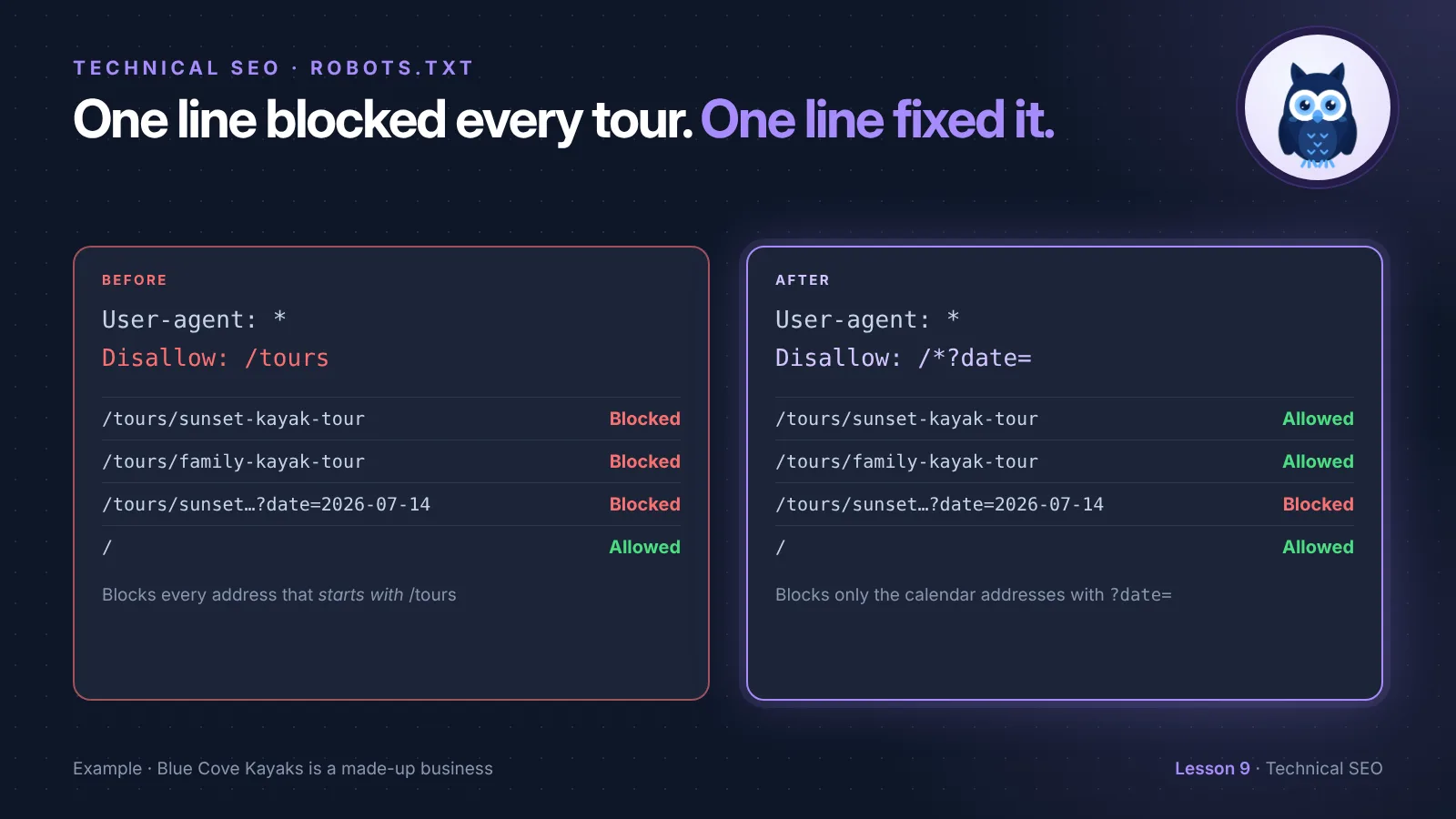
The first line blocks every tour page, along with the calendar. The second blocks only addresses with ?date= in them, so the tour pages stay open.
🦉 Spot the mistake
Blue Cove's developer wanted to stop Google crawling the calendar pages, like /tours/sunset-kayak-tour?date=2026-07-14. He added:
User-agent: *
Disallow: /tours
What happens?
- A) Only the calendar pages are blocked
- B) Every address starting with
/toursis blocked, including the sunset tour page itself - C) Nothing, because the rule needs a slash at the end
Show the answerHide the answer
B) Every tour page is blocked. Rules match the start of the address, so /tours covers the whole Tours section. The sunset tour is the page that brings in most of Blue Cove's bookings. The right rule is Disallow: /*?date=, which matches only the calendar addresses.
What small sites should block
Most small sites need very little. Block addresses that are useless to searchers and that Google could waste lots of visits on:
- Calendar, filter and sort addresses, like
?date=,?sort=priceor?color=blue. They can multiply into thousands of near-identical pages. - Internal search results, like
/search?q=kayak. Google advises against letting its crawler loose on your own search results. - Cart, checkout and account pages. They're different for every visitor and useless in Google.
Your website builder may already handle some of these. WordPress, for example, blocks its admin area by default.
What you should never block
These are the lines that cause real damage:
- Your key pages, or a whole section they live in. That's the
/toursmistake. - The whole site.
Disallow: /is sometimes added while a new site is being built, and then forgotten on launch day. It's one of the most common reasons a new site never shows up. - CSS and JavaScript files. Google loads your page like a browser does. If it can't load your styles and scripts, it may not see your page the way visitors do, and it may miss content entirely.
- Images you want found. Blocked images can't show in Google Images.
- Pages you've put a noindex on. If Google can't visit the page, it never reads the noindex. Lesson 10 explains this one.
Scout's mistake: "My robots.txt blocked my checkout for every crawler. Then I added a separate group just for Googlebot, to let it into my images folder. A week later, Googlebot was crawling my checkout pages." A crawler follows only the one group that matches it most closely, and ignores the rest. Once there's a
User-agent: Googlebotgroup, Googlebot skips theUser-agent: *rules completely. If you add a group for one crawler, copy every rule it still needs into that group.
How Blue Cove fixed it
Blue Cove noticed the problem three days later, when the sunset tour page showed "Blocked by robots.txt" in Search Console. Here's their robots.txt before and after:
Before
User-agent: *
Disallow: /tours
After
User-agent: *
Disallow: /*?date=
Disallow: /search
Disallow: /checkout/

Sitemap: https://bluecove-kayaks.example/sitemap.xml
Disallow: /*?date=blocks every calendar address on every tour, and nothing else.Disallow: /searchblocks the site's own search results.Disallow: /checkout/blocks the booking checkout.- The
Sitemap:line points to the sitemap, which lists the tour pages Blue Cove does want found.
Then they tested it. They pasted three addresses into the Robots.txt tester: the sunset tour page (allowed ✅), a calendar address (blocked ✅) and the homepage (allowed ✅). Finally, in Search Console, they used URL Inspection on the sunset tour page and clicked Request indexing.
You can see where this fits in a full site check in lesson 2 of the SEO Audit Playbook, where Blue Cove found the calendar problem in the first place.
No code needed. You don't always edit robots.txt as a file. Many website builders and SEO plugins have a robots.txt box in their settings, and some booking systems have a setting to hide calendar links from search engines. Whichever way you change it, test afterwards.
🦉 Quick check
Blue Cove's robots.txt says Disallow: /search. Which of these addresses is blocked?
- A)
/search?q=sunset - B)
/search-and-rescue-training(a blog post) - C) Both
Show the answerHide the answer
C) Both. Rules match the start of the address, so anything beginning with /search is blocked, including a blog post with that word at the front. If Blue Cove ever publishes that post, they should change the rule to Disallow: /search? so it only matches search result addresses.
How to test your robots.txt
Do this every time you change the file:
- Open it. Go to
yoursite.com/robots.txtand read every line. Is anything blocked that shouldn't be? - Test your key pages. Paste your homepage and your 3 to 5 most important pages into the Robots.txt tester. Each one should be allowed.
- Test what you meant to block. Paste one address you wanted blocked. It should be blocked.
- Check Search Console. Go to Settings → robots.txt to see the version Google last fetched and any problems it found. Google usually re-reads the file within a day.
- Watch the Pages report. Over the next weeks, look at Indexing → Pages for the reason "Blocked by robots.txt". Only pages you meant to block should appear there.
🔎 From my own audits: The worst robots.txt I've found blocked the whole site. The owners had written the file themselves, and a syntax error turned "block one folder" into "block everything".
Must do vs go deeper
✅ Must do (about 20 minutes)
- Open your robots.txt and read it, line by line
- Make sure there's no
Disallow: /on its own underUser-agent: * - Test your homepage and your 3 to 5 key pages in the Robots.txt tester
- If your site has calendar, filter or sort addresses with thousands of variations, block them with a
*rule, then test
🔍 Go deeper (optional)
- In Search Console, open Indexing → Pages → Blocked by robots.txt. Is every page there one you meant to block?
- Check that your CSS and JavaScript aren't blocked: in URL Inspection, click Test live URL, then View tested page → More info, and look for blocked resources.
- Add a
Sitemap:line if you don't have one. - Decide about AI crawlers. Some AI companies name their crawlers so you can block them in robots.txt, for example
GPTBot. Google uses a separate name,Google-Extended, to let you opt out of its AI models using your content. BlockingGoogle-Extendeddoesn't change how you appear in Google Search. It's a business choice, not an SEO fix, so make it on purpose.
🦉 What would you do?
Blue Cove is building a new website on a test address before launch. Their designer added Disallow: / to the test site's robots.txt to keep it out of Google. What do you suggest?
- A) Good idea, and copy the same robots.txt to the live site on launch day
- B) Put the test site behind a password instead, and check the live site's robots.txt on launch day
- C) Leave it. robots.txt is never a problem
Show the answerHide the answer
B) Use a password, and check on launch day. A password keeps the test site private from everyone, which robots.txt can't do. And copying Disallow: / to the live site is the classic launch-day disaster: the whole new site blocked. Lesson 10 has a launch-day checklist for exactly this.
Quick recap
- robots.txt tells crawlers which addresses not to visit. It doesn't remove pages from Google, and it doesn't hide anything.
- Rules match the start of the address, and capitals matter.
*means "anything" and$means "ends here". - Block useless addresses: calendars, filters, internal search, checkout.
- Never block your key pages, your whole site, or your CSS and JavaScript.
- A crawler follows only the one group that names it most closely.
- Test every change with the Robots.txt tester, and watch "Blocked by robots.txt" in Search Console.
Your task (20 minutes): Open your robots.txt, read every line, and test your 3 to 5 key pages in the Robots.txt tester.
Lesson 9 of 11 done 🎉
The guide for the Technical SEO series: the full checklist, free by email.
Next up, lesson 10: Noindex or robots.txt? Blue Cove has a booking thank-you page, an old price list PDF and a test site for its redesign. Each one should stay out of Google, and each needs a different tool. You'll learn which one to use, and how to get a page out of Google once it's already in.
Want to check the rest of your site too? Run the free SEO audit.
Sources and further reading
- Introduction to robots.txt (Google Search Central)
- How Google interprets the robots.txt specification (Google Search Central)
- Create and submit a robots.txt file (Google Search Central)
- robots.txt report (Search Console Help)
- Google's common crawlers, including Google-Extended (Google Search Central)