Photos sell. For a business like a tour company, a café or a shop, the right photo can do more than a whole paragraph. But a photo straight from your camera or phone can also be the heaviest thing on your page, with a name like IMG_4821.JPG and no description at all. This lesson covers image SEO in three simple steps: describe the image, name the file, and make it the right size.
No code needed. You'll need about 20 minutes and the photos on one important page.
New here? This is lesson 7 of the On-Page SEO series. It works on its own, so you can start right here.
🦉 Remember from last lesson?
Blue Cove merged its evening tour into the sunset tour. Where should the old evening tour address redirect to?
- A) The homepage
- B) The sunset tour page, the closest match to what people were looking for
- C) Nowhere. Let it show an error
Show the answerHide the answer
B) The closest match. A 301 redirect to the most similar page keeps visitors, and the links pointing at the old page, heading somewhere useful. Today we stay on the sunset tour page and look at its photo.
Meet Blue Cove Kayaks
In this lesson we follow Blue Cove Kayaks (bluecove-kayaks.example), a family-run sea-kayaking tour company on Naxos. Blue Cove is made up. Its problems are real ones most small sites run into, but its story is an example, not real results.
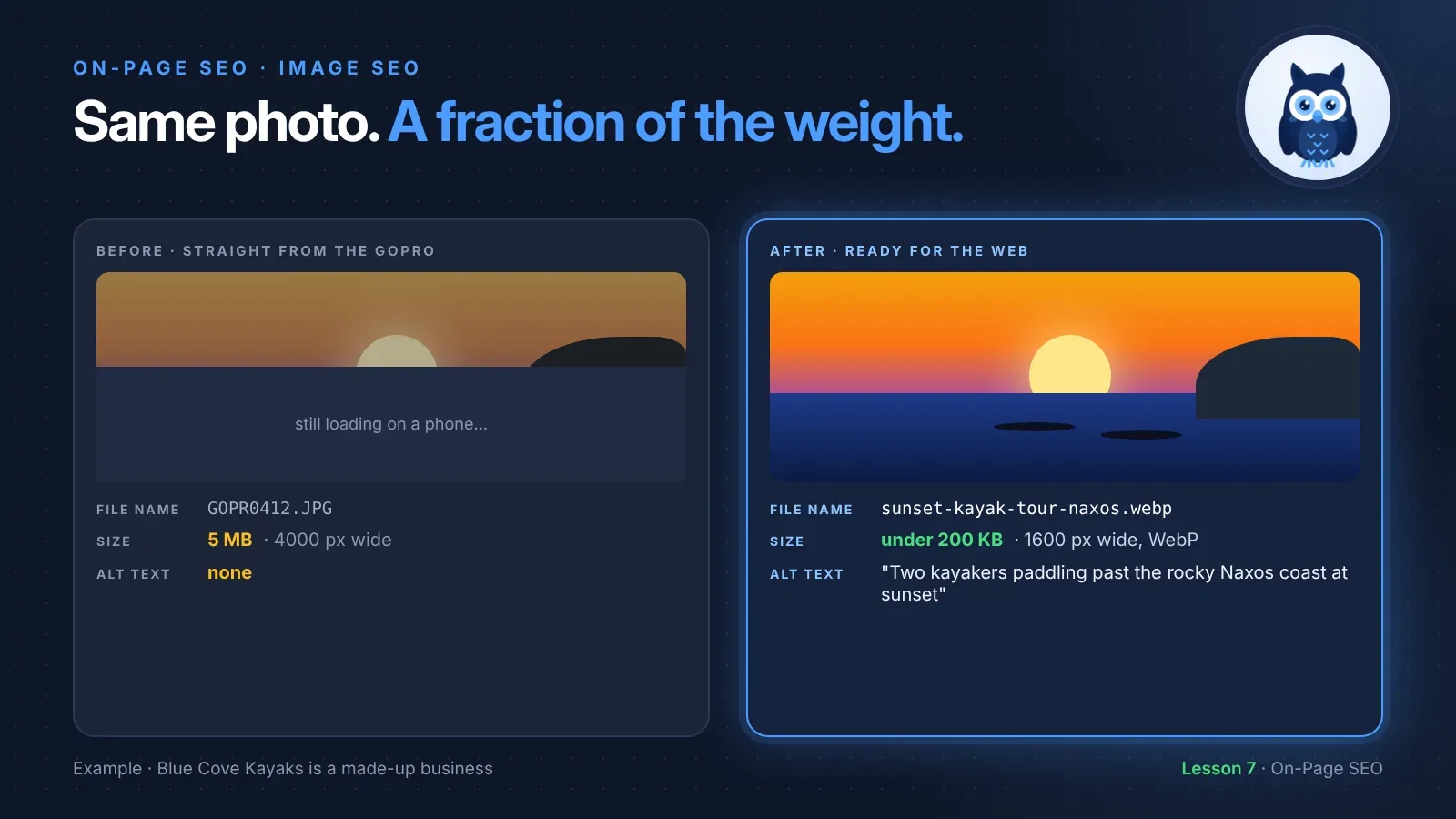
Blue Cove's favorite photo shows two kayakers gliding past the rocks at sunset. They took it on a GoPro and uploaded it straight to the top of the sunset tour page. The file was called GOPR0412.JPG. It was 5 MB, 4000 pixels wide, and it had no description.
On a phone with a weak signal, the photo took so long to appear that some visitors saw an empty box first. And to Google, it was a file with a camera code for a name and nothing to say what was in it.
Why images matter for SEO
Images help in three ways, as long as they're set up well:
- They can be found. Your photos can appear in Google Images and in image results on the main search page. That's another way for people to discover you.
- They help Google understand the page. Google uses the image's description, its file name and the text around it to work out what the image shows.
- They make or break speed. Google says images are often the biggest part of a page's size. A heavy photo makes the page slow, and slow pages lose visitors.
Step 1: Describe the image with alt text
Alt text is a short written description of an image. Visitors don't usually see it, but:
- screen readers read it aloud to people who can't see the image
- it shows instead of the image if the image fails to load
- Google uses it to understand the image, and says it's the most important extra information you can give about one
Good alt text describes what's actually in the image, in plain words, in about one sentence. Here's Google's own approach, applied to Blue Cove's photo:
| Alt text | Verdict |
|---|---|
| (none) | ❌ Says nothing to screen readers or Google |
kayak naxos, sunset kayak tour naxos, kayaking greece, best kayak tour |
❌ A list of keywords, not a description |
kayaks |
⚠ True, but tells very little |
Two kayakers paddling past the rocky Naxos coast at sunset |
✅ Describes exactly what's in the photo |
Notice the good one mentions "Naxos" and "sunset" naturally, because they're really in the picture. That's how keywords belong in alt text: only when they describe the image.
A few rules for alt text:
- Describe, don't sell. "Two kayakers paddling at sunset", not "The best tour on Naxos!"
- Skip "image of" or "photo of". Screen readers already say it's an image.
- Keep it to about one sentence.
- Leave it empty for decorative images, like a wave line between sections. An empty alt text tells screen readers to skip it.
- Image links need alt text too. If an image is a link, Google treats its alt text like the link's words. Blue Cove's Tours page uses tour photos as links, so each one got alt text like "Family kayak tour on a calm Naxos bay".
🦉 Quick check
Blue Cove's family tour page has a photo of a dad and two kids in a double kayak, laughing. Which alt text is best?
- A)
family kayak tour naxos family kayaking kids naxos - B)
A dad and two children laughing in a double kayak on a calm bay - C)
Image of a photo
Show the answerHide the answer
B) It describes what's really there, so a screen reader user gets the same picture. A is keyword stuffing. C says nothing useful.
Step 2: Give the file a clear name
Before you upload, rename the file so it says what's in it:
Use lowercase words with hyphens between them, just like a good URL in lesson 6.
How much does this matter? Google says a file name gives only "very light clues" about the image. So it's worth the ten seconds, but alt text matters far more.
Two things that can undo your file name:
- Your phone's photo gallery. Saving an image to the gallery often renames it to something like
IMG_4821. Save it to your Files app instead, and the name you chose stays. - Your website. Some systems rename every upload to a random code. If yours does, don't worry: you can't control it, and your alt text still does the important work.
Step 3: Make it the right size
This is where the biggest wins are. A photo from a modern phone or camera is usually far bigger than any website needs.
Two kinds of "size" matter:
- Dimensions (how many pixels wide). Blue Cove's photo was 4000 pixels wide. On their page it never shows wider than about 1600, so the extra pixels were downloaded for nothing.
- File size (how much there is to download). A photo for a web page is usually fine at well under 300 KB. Blue Cove's was 5 MB.
How Blue Cove fixed it, with no code:
- Resized it to 1600 pixels wide.
- Saved it as WebP, a modern image format that keeps photos sharp at a much smaller size. Google supports it, along with JPEG, PNG, AVIF and others.
- Checked it still looked good, then uploaded it with its new name.
The same photo went from 5 MB to under 200 KB, and looked the same on screen.
Free tools that do this:
- Squoosh: drag a photo in, resize it, choose WebP, and download. It works in your browser.
- Many website builders and plugins compress images automatically when you upload. Check your settings: it may already be on.
Scout's mistake: "I uploaded twelve photos straight from my phone to one blog post. Each was 4 or 5 MB. On my laptop at home it looked fine. On a phone on a train, the page took forever and most people gave up." Always resize and compress before you upload. Test your page on a phone, not just your computer.
🦉 Spot the mistake
Blue Cove adds a gallery to its private tour page: twenty photos, each resized to 1600 pixels and saved as WebP. Every photo has the same alt text: "Private kayak tour". What's wrong?
- A) Twenty photos is too many
- B) Every photo has identical alt text, so it doesn't describe what's in each one
- C) WebP isn't supported by Google
Show the answerHide the answer
B) Each alt text should describe its own photo: "A couple paddling into a sea cave", "Our guide pointing out the lighthouse" and so on. Identical alt text tells screen reader users the same thing twenty times. (And WebP is supported, so C is wrong.)
Where images live in the code
The code way. An image on a web page looks like this:
<img src="/images/sunset-kayak-tour-naxos.webp"
     alt="Two kayakers paddling past the rocky Naxos coast at sunset"
     width="1600" height="1200">
<imgstarts an image.src="…"is where the image file lives, with its clear file name.alt="…"is the alt text.widthandheighttell the browser how much space to save for the image, so the text doesn't jump around while it loads.
For images further down a long page, you can add loading="lazy". The browser then waits to load them until the visitor scrolls near them. Don't add it to the main image at the top of the page, which should load straight away.
No code needed. In most website builders, click the image after uploading it. You'll find a field called "Alt text", "Alternative text" or "Image description". Many builders set the width, height and lazy loading for you.
One more thing: use real images, not background images. If your design puts a photo in the background of a section, Google won't index it as an image. For photos that matter, like your tours or products, use a normal image.
🦉 Quick check
Which image should not get loading="lazy"?
- A) The big sunset photo at the very top of the sunset tour page
- B) A photo in the gallery at the bottom of the page
Show the answerHide the answer
A) The top photo is one of the first things people see, so it should load right away. Lazy loading is for images people only reach by scrolling.
Must do vs go deeper
✅ Must do (about 20 minutes)
- Check the images on your most important page. Does each one have alt text that describes it?
- Rename any image files with camera names (
IMG_…,DSC_…,GOPR…) before your next upload - Resize and compress your biggest photos, aiming for well under 300 KB each
- Leave alt text empty for purely decorative images
- Open the page on your phone and watch it load
🔍 Go deeper (optional)
- Run the page through PageSpeed Insights. It points out images that are too big or could use a modern format like WebP or AVIF.
- Look up your page's Largest Contentful Paint (LCP), the time it takes for the biggest thing on screen, often your main photo, to appear. Google counts 2.5 seconds or less as good.
- Add
loading="lazy"to images further down long pages, if your website builder doesn't already. - If you have lots of images Google might miss, look into an image sitemap.
- Put each image near the text it relates to, with a caption if it helps.
🦉 What would you do?
Blue Cove has a poster image on the sunset tour page with the price, start time and meeting point written on it. It's pretty, and the family wants to keep it. What do you suggest?
- A) Delete the poster
- B) Keep the poster, but also write the price, time and meeting point as normal text on the page, and give the poster alt text
- C) Put all the details in the poster's alt text instead
Show the answerHide the answer
B) Google can't reliably read text inside an image, and neither can screen readers. The details belong in the page's own text, as you saw in lesson 5. The poster can stay as a nice extra, with a short alt text like "Sunset tour poster with price and meeting time".
Quick recap
- Image SEO comes down to three steps: alt text, file name, size.
- Alt text describes what's in the image, in about one sentence. No keyword lists. Leave it empty for decorative images.
- File names like
sunset-kayak-tour-naxos.webpgive Google light clues. Alt text matters more. - Resize and compress before you upload. A web photo is usually fine at well under 300 KB, and WebP helps.
- Don't lazy-load the main image at the top of the page.
Your task (20 minutes): Fix the images on your most important page: alt text for each, clear file names, and nothing over about 300 KB.
Lesson 7 of 9 done 🎉
The guide for the On-Page SEO series: the full checklist, free by email.
Next up, lesson 8: an internal linking plan you can reuse. Blue Cove's private tour page now has great photos. There's just one problem: no other page on the site links to it. You'll learn a four-step plan to make sure every page that matters has a way in.
Want to check the rest of the page too? Run the free SEO audit.
Sources and further reading
- Google image SEO best practices (Google Search Central)
- Largest Contentful Paint (LCP) (web.dev)
- Images tutorial (W3C Web Accessibility Initiative), including when to leave alt text empty
- PageSpeed Insights (Google)